In the Moment:
Michael Frye's Landscape Photography Blog

Adobe’s New Lightroom and Photoshop Package
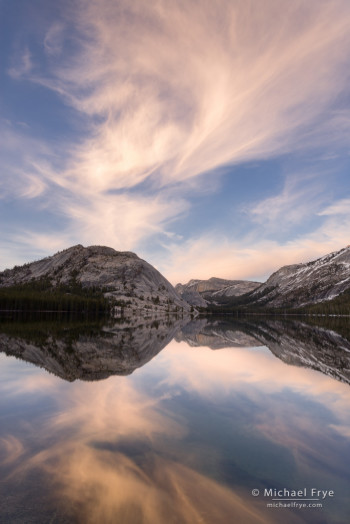
Sunset clouds, Tenaya Lake, Yosemite NP, CA, USA

Sunset clouds, Tenaya Lake, Yosemite NP, CA, USA

Back in June I wrote about Adobe’s new subscription-only model for licensing Photoshop, called the Creative Cloud. Let’s just say that I wasn’t happy about it. But recently, as I’m sure many of you know, Adobe announced a new Photoshop Photography Program. For $9.99 per month you can get both Photoshop CC (Creative Cloud) and Lightroom, and it’s not an introductory price that will go up after a year. That doesn’t mean that it will never go up, but Adobe says that they don’t have any plans to increase the price at this time. (The offer is only available to people who currently own Photoshop CS3 or later, and it expires on December 31st.)

I have to say that this is a more attractive offer. $9.99 per month comes out to less than I’ve been paying for upgrades to both Lightroom and Photoshop. Of course I already own a license to Lightroom 5, so in the short term I’d really be paying just for Photoshop CC. But at least the price wouldn’t automatically go up after a year, and when Lightroom 6 comes out I’d get it for no extra charge.

Unfortunately this program won’t help you if you don’t already own Photoshop CS3 or later. It’s possible that Adobe might offer a version of this package (probably a more expensive version), to people who don’t already own Photoshop, but there’s no word of that yet. You can still buy Photoshop CS6 from places like Amazon and B&H, and that would then qualify you to get this Photoshop/Lightroom bundle, but that’s an expensive way to go, since CS6 is going for more than $600.
(more…)

Spot-Removal Tool Feathering in Lightroom 5.2

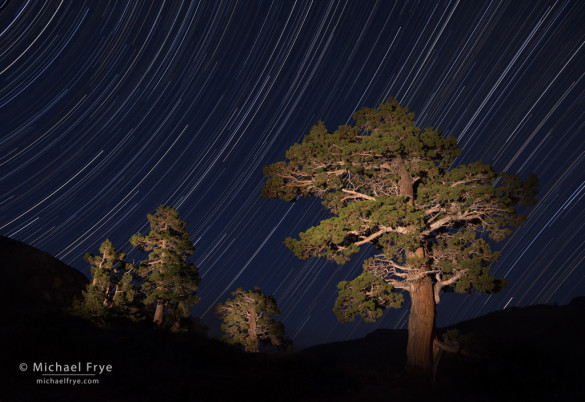
Spot Removal Lightroom: Star Trails and junipers east of Sonora Pass, Toiyabe NF, CA, USA

Star Trails and junipers east of Sonora Pass. Lightroom’s retouching tools keep getting more sophisticated; Lightroom 5’s Advanced Healing Brush was very helpful in removing jet trails from this image.

Adobe just released Lightroom 5.2, with a small but significant new feature: the ability to add feathering to the Spot Removal Tool’s brush. This adds further sophistication to Lightroom’s retouching abilities, continuing the theme introduced by the “Advanced Healing Brush” in Lightroom 5.0.

You usually want fairly hard-edged brushes with retouching tools, otherwise you’ll get unwanted blurring along the borders of your retouching areas. But small amounts of feathering can help make transitions smoother and the retouching less obvious. Try setting the Feathering in the Spot Removal Tool to 40 as a starting point, then modify it if necessary. And in keeping with Lightroom’s complete flexibility, you can adjust the feathering after the fact: you can place a spot or add a brush stroke, then adjust the feathering of that area to see the effect of different feathering amounts.

As I said, this is a small improvement, but a helpful one, and something worth paying attention to if you’re a Lightroom user. Naturally 5.2 is a free upgrade if you own Lightroom 5.

And while we’re on the subject, I’ve found the Advanced Healing Brush to be extremely helpful. This is a new capability added to the Spot Removal Tool in Lightroom 5.0, allowing you to brush over an area you want to retouch instead of using a series of discrete spots. It’s made my retouching in Lightroom more efficient, and allowed me to use Photoshop less and stay in Lightroom more. I’m curious about whether others have also found this new feature helpful—let me know how you like it.

— Michael Frye

(more…)

Free Bonus Video: Using the Arrow Keys in Lightroom

(If you’re viewing this post as an email, click here to see the video.)

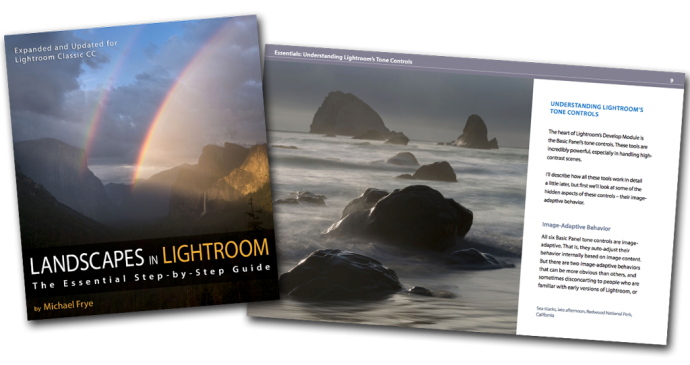
The response to my ebook and video package, Landscapes in Lightroom 5: The Essential Step-by-Step Guide, has been wonderful, well beyond my expectations. Thank you all so much for your support! I put a lot of effort into creating something that I hoped would be helpful to a lot of photographers, and it’s gratifying to see that this effort has been well received.

As an expression of my appreciation, I’m extending the discount codes for two extra days. Use the code lr520 and get 20% off the ebook package until midnight on Tuesday, August 6th Pacific time.

Also, I’ve created the free, bonus video tutorial above to go along with the ebook. It’s a tip about using the arrow keys in Lightroom to help speed your workflow and fine-tune your adjustments. I use the arrow keys all the time, and I hope you’ll find this technique helpful too.

Again, thank you all very much! I really appreciate all the positive comments you’ve sent me about the ebook.

— Michael Frye

P.S. If you know someone who might like this video, or who would enjoy the ebook, please share this post!

(more…)

Importing the DNG Raw Files Into Lightroom

Landscapes in Lightroom: Importing the DNG Raw Files

Here’s how to import the DNG Raw files into Lightroom:

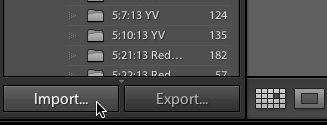
1. Go to Lightroom’s Library Module, then click on Import in the lower-left corner:


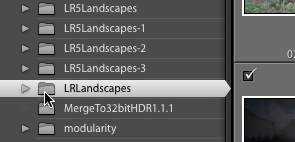
2. In the ensuing Import window, on the left-hand side under Source, navigate to the folder called LRLandscapes that contains the DNG files and select it. (Unless you moved it, this should be in your Downloads folder.)


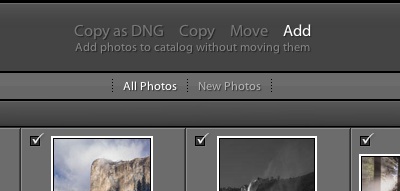
3. Still in the Import window, in the middle along the top, make sure that “Add” and “All Photos” are selected:


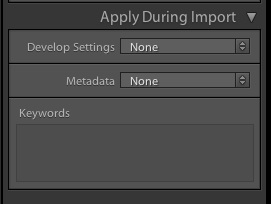
4. Still in the Import window, along the right side under Apply During Import, make sure that Develop Settings and Metadata are both set to “None:”


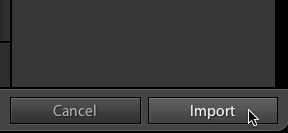
5. Now you’re ready to click on the Import button in the lower-right corner. It should only take a few seconds for Lightroom to import the images, and then you’re ready to use them.

Landscapes in Lightroom: Frequently Asked Questions

Landscapes in Lightroom: Frequently Asked Questions


Landscapes in Lightroom: The Essential Step-by-Step Guide

PDF ebook with video tutorials
116 double-page spreads
17 video tutorials
DNG sample files available for download
$39

Purchase from the Eduction Center

Do I need any special software to read the ebook?

No! It’s a PDF file, and it’s easy to read on both Windows and Apple computers with the free Adobe Reader (or with Preview on a Mac).

How do I view the videos?

There are links and passwords to the videos within the PDF ebook itself. The text and videos are designed to provide an integrated learning experience, with the videos expanding on the ideas presented in the text. For instance, in the first example I describe how I used the Adjustment Brush to darken the top part of the image, then provide a link to a video tutorial about using the Adjustment Brush, where I delve into more detail about using this tool, and show you exactly what I did to the example image. (Note that videos are not downloadable; they can only be streamed.)

Can I read the ebook on my tablet?

Absolutely. When you purchase the ebook, you’ll get an email with a download link. You can click on that link from the email application on your tablet to download the PDF directly to your tablet.

On an iPad, once the PDF has opened in Safari you’ll want to open it in iBooks to automatically save it so you won’t have to download it again (iBooks also provides the best reading experience). The procedure for doing this varies depending on which iOS version you’re running. Try just tapping on the screen in Safari; you might then see an option to “Open in iBooks.” If you don’t see this option, tap the Share button (looks like a square with an arrow), and look for the option to “Copy to iBooks.” Either way, it may take a minute or two to open in iBooks, so be patient.

You could also download the PDF ebook to your laptop for desktop, then transfer the file to your tablet with Dropbox or another file-sharing service. With an iPad you could also use Airdrop to transfer the PDF, or sync the PDF to your iPad using the Books tab in the iPad panel in iTunes.

How do I download the DNG Raw files so I can follow along with the examples?

When you purchase the ebook you’ll get an email with a link to the DNG files (there’s also a link within the PDF ebook itself). When you get to the page, don’t click on the folder – just click on Download in the upper-right corner. That should download the entire folder (called LRLandscapes) to the Downloads folder on your hard drive. Then just unzip the folder (if it didn’t unzip automatically) and import the images into Lightroom.

If you’re not sure how to import the DNG files into Lightroom, click here for detailed instructions.

Still have questions?

Email us at support@michaelfrye.com and we’ll try to help! If you’re experiencing problems downloading the PDF, please try to include as much information as possible, including the device and operating system you’re using, and what exactly happens when you try to download the PDF. Any information you can provide will help us help you!

Back to the Landscapes in Lightroom main page

I just got the book and about half way through it. I can’t believe how much I have learned so far. You have destroyed eveything I thought I knew about using Lightroom. Can’t wait to apply some of this new knowledge on some of my own work. Great job! Easy to read and understand.

— Bruce Johnson

I would just like to say how good it is to follow your thinking when working on your images. It has made me realize that less is more in so many cases. I’m pretty well versed as regards to LR functions but it is always healthy to see how you tackle problems and come up with such stunning landscapes. To those who are wondering, this ebook is worth every centime. 🙂

— Malcolm McLeod

I already have my copy! Your writing style makes it easy and educational read. I have already learned several new things and am only on page 19! I am looking forward to working on the examples you provide. I think this is an excellent learning tool.

— Richard Valenti

Just now purchased the e-book, and I have to say it looks like a bargain – even before the discount. You could probably charge twice as much and still sell as many! I look forward to spending some quality time with it and your sample files (not to forget the videos). Did I mention already it’s a bargain?

— Robert Gissing