In the Moment:
Michael Frye's Landscape Photography Blog
by Michael Frye | Apr 20, 2012 | Uncategorized
(If you’re getting this post through email, click here to view the video.)
Here it is, my second video about the new process in Lightroom 4. In Part One I explained how the new tone controls work; here in Part Two I talk about how to use these new tools to process both low- and high-contrast images. Here are some of the main points:
– Where to begin? If you’ve read my eBook Light and Land, or watched one of my previous videos about curves, you know that in the old process I preferred starting with all the Basic tone controls set at zero, and the point curve linear. Does this still apply in the new process? (1:10)
– Curves or sliders? The new Basic Tone sliders are much better than the old ones; are they good enough to replace the Point Curve? (10:30)
– Does the order matter? Adobe suggests using the Basic tools in order from top to bottom, starting with Exposure, then Contrast, and working down to Highlights, Shadows, Whites, and Blacks—essentially working from the midtones out to the black point and white point. But this contradicts a long-standing tradition in digital imaging of setting the black point and white point first. Should you stand with tradition, or embrace the new order? (13:02)
– Processing a high-contrast image. (21:04)
This video is about 27 minutes long, so, as I said with Part 1, grab your favorite beverage, sit back, relax, and enjoy the show. Spending a little time with this video now will save time later when you’re processing photos. More importantly, I hope that this video will help you get the most out of your images so that they convey what you saw and felt when you pressed the shutter.
As I mention in the video, the best way to learn more about processing images in Lightroom is to take a workshop. There’s are still a couple of spots available in my October workshop, The Digital Landscape: Autumn in Yosemite. This is a comprehensive course covering the entire process from capture to print, with field sessions covering exposure, composition, and everything you do before pressing the shutter, and lab sessions where we process and print the images with Lightroom.
I hope you enjoy Part 2!
—Michael Frye
Related Posts: Lightroom 4: The New Tone Controls; Using Curves in Lightroom and Camera Raw
Michael Frye is a professional photographer specializing in landscapes and nature. He is the author and photographer of The Photographer’s Guide to Yosemite, Yosemite Meditations, and Digital Landscape Photography: In the Footsteps of Ansel Adams and the Great Masters, plus the eBooks Light & Land: Landscapes in the Digital Darkroom, and Exposure for Outdoor Photography. He has written numerous magazine articles on the art and technique of photography, and his images have been published in over thirty countries around the world. Michael has lived either in or near Yosemite National Park since 1983, currently residing just outside the park in Mariposa, California.
by Michael Frye | Apr 13, 2012 | Uncategorized
(If you’re getting this post through email, click here to view the video.)
As I wrote last week, Lightroom 4 represents a big change—the biggest change to Adobe’s Raw processing engine since Adobe Camera Raw was introduced in 2003. They’ve completely revamped the underlying algorithms for all of the tonal controls, and changed the behavior, and in some cases the names, of all the Basic Tone sliders.
Overall, I’m really happy with the new process, especially for high-contrast images. But if you’re accustomed to Lightroom 3 the new tools may seem strange at first. So I’ve been working on two videos to explain the changes and how to work with the new tools.
The first video, embedded here, explains some of the differences between the old and new processes, how the new tools work, and the ways they affect an image’s appearance. Here are some of the main points:
(more…)
by Michael Frye | Apr 6, 2012 | Digital Darkroom
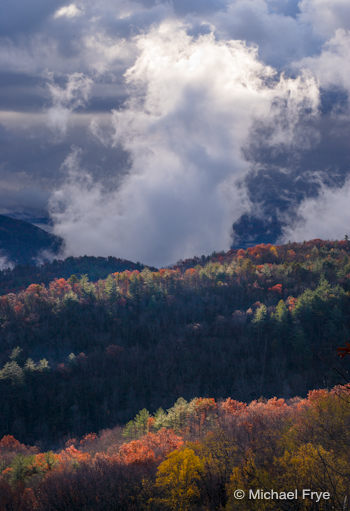
Clearing storm along the North Carolina-South Carolina border—processed with Lightroom 4
I’ve finally had a chance to really dive into Lightroom 4, and I’m very happy with the results I’ve been getting. While I haven’t found a big difference in processing low-contrast images, with high-contrast scenes the improvements are significant.
The accompanying image was made during my trip to South Carolina last November. It was a fast-changing situation—the sun suddenly broke through, and I missed the exposure slightly, so the brightest highlights at the top of the clouds were blown out. By the time I adjusted the exposure the scene had changed.
(more…)
by Michael Frye | Mar 7, 2012 | Announcements, Digital Darkroom
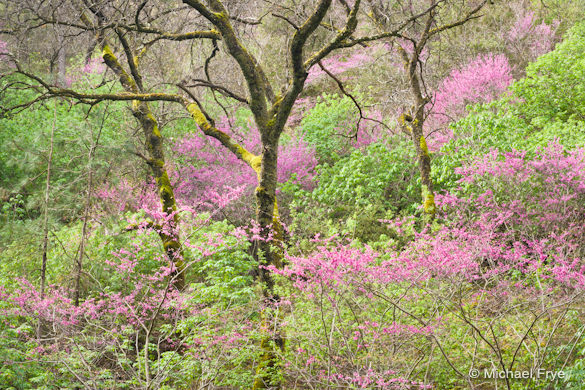
Redbud and oaks, Merced River Canyon, processed in Lightroom 3
If you’re a regular reader of this blog you know that I’m a big fan of Lightroom. It’s easy to use, yet powerful, which makes it a great tool for both beginning and advanced photographers. I teach workshops about Lightroom, and wrote an eBook about it, because I think it’s a tool that can help many photographers. Personally, as Lightroom’s processing tools have grown more sophisticated I’ve used Lightroom more and more and Photoshop less and less.
As many of you probably know, Lightroom 4 went on sale yesterday. In this new version Adobe has completely revamped the Basic panel, with significant improvements in highlight and shadow recovery. I’ve already used the beta version of Lightroom 4 to take advantage of those improvements. For example, I was able to get smoother transitions around the sun in one of the photographs from this post (“Ross’s geese taking flight at sunset”).
The Basic panel tools have completely changed in both operation and behavior, which may require some modifications in they way we work in Lightroom. I’m looking forward to exploring these new tools, and telling you about my discoveries, but unfortunately I’ve encountered a frustrating roadblock—a bug in Lightroom 4 that causes all of my Tone Curve settings for images previously processed in Lightroom 3 to disappear! All I see is the default Tone Curve for the camera, and, since I do most of the tonal adjustments for every image with curves, my images look rather flat (the accompanying images show one example of this). And I don’t want to re-create the curve for thousands of images!
(more…)
by Michael Frye | Jan 11, 2012 | Digital Darkroom
As many of you know, Adobe released a beta version of Lightroom 4 yesterday. There are some major changes to the Develop Module—the Brightness slider has disappeared, while the Recovery and Fill Light tools have been replaced by Highlights and Shadows. Adobe says these Highlight and Shadow tools were improved, and a quick test bears this out—I was able to recover detail in an overexposed moon with Lightroom 4 and not with Lightroom 3. There’s also a new Whites slider, the Blacks slider is quite different, you can adjust individual color channels with the Point Curve—and they’ve changed the default settings.
I’m looking forward to experimenting with the new tools, figuring out the new defaults, and sharing with you what I learn. In the mean time you can watch Julianne Kost give an overview of the new features, or describe the specific changes to the Develop Module. To download the beta, click here.
Remember that this his a beta, so it’s bound to have bugs, and the final shipping version will be different, so adjustments you make now might not translate to the finished version. If you want to import a few images into the beta version to try it out, great, but I don’t recommend that you start using Lightroom 4 beta as your primary tool until the final version ships.
You can’t upgrade your current catalog to Lightroom 4, which is good—you don’t want to mess with your existing catalog. Adobe also recommends that you don’t save metadata to XMP, and I wholeheartedly agree. Don’t Save—don’t press Command-S on a Mac, or Control-S on Windows, and make sure the option to automatically write changes into XMP is turned off. It’s turned off by default in Lightroom 4, but to check go to your Catalog Settings (under the Lightroom menu on Macs, or under the Edit menu on Windows), click on the Metadata tab at the top, and make sure that “Automatically write changes into XMP ” is unchecked. And while you’re at it uncheck “Include Develop settings in metadata inside JPEG, TIFF, and PSD files” also.
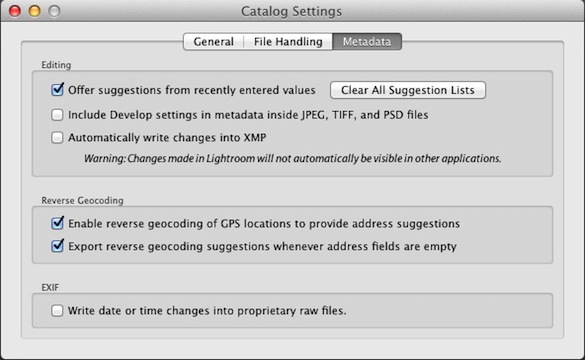
Now in Lightroom 3 I do recommend—highly—that you check these boxes. To understand why, and what all XMP stuff means, we have to talk about some fundamental aspects of how Lightroom works, so if you want to delve into these details read on.
Lightroom is a non-destructive editor, which means that when you make changes to a photograph’s appearance, Lightroom does not modify the original Raw or JPEG file, but rather writes a set of instructions about how you want to the image to look. Those instructions don’t get applied until and unless you export the image out of Lightroom (like when you take it into Photoshop, or export a JPEG to put on a web site).
Those instructions are automatically written into the Lightroom database, and can also be written into the image file itself with JPEG, TIFF, PSD, and DNG files, or with other Raw files (NEF, CR2, etc.) into a sidecar file with a .xmp extension. So with Lightroom 4 you want avoid writing writing those instructions into the image file, or a sidecar file, because those instructions won’t be compatible with Lightroom 3, and may not be compatible with the final version of Lightroom 4. But with Lightroom 3 you want to write those instructions (the metadata) into the file or sidecar file so that if Lightroom catalog ever gets corrupted those instructions, your edits to all your images, won’t be lost, because the information will be stored with the image itself. Also, that information can be read by other programs, namely Adobe Camera Raw and other copies of Lightroom.
So with that said, have fun playing with Lightroom 4, and I’ll be back with more after I’ve given it a thorough test drive.