In the Moment:
Michael Frye's Landscape Photography Blog
by Michael Frye | Jul 1, 2010 | Critiques
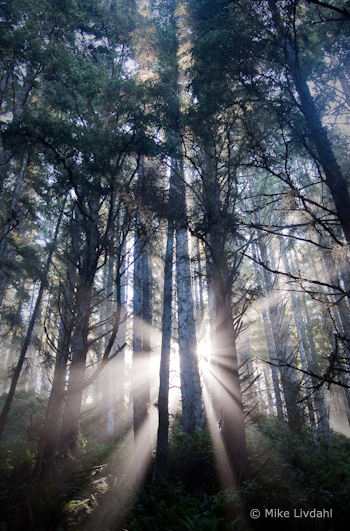
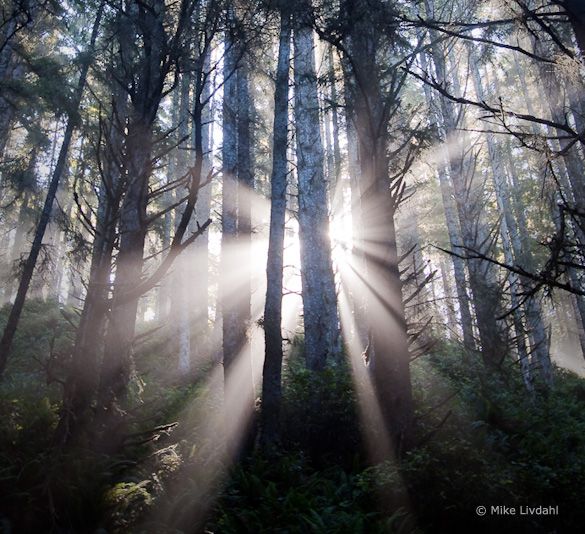
“Forest Sunrise #1 – Olympic National Park” by Mike Livdahl
This week’s photograph was made by Mike Livdahl in Olympic National Park, Washington. By having his image chosen for this critique Mike will receive a free 16×20 matted print from Aspen Creek Photo. If you’d like your images considered for future critiques you can upload them to the Flickr group I created for this purpose.
The most striking thing about this photograph is the fantastic light, with sunbeams radiating through the mist from behind tall trees. Light is the essence of photography. When we press the shutter we’re not recording objects, we’re capturing light. Often great light is enough to make a great photograph, even if the subject isn’t that interesting. These trees are nice, but without those sunbeams this would be a rather ordinary scene.
The exposure for such strong backlight can be tricky, but Mike handled it well. We see detail in all but the darkest parts of the tree trunks, yet the only the very brightest highlights are blown out. This is one of those rare instances where it’s okay to have some small washed-out areas in the photo, because this is something we would see in real life: looking at this scene the sun and adjacent sky would be blinding, and we wouldn’t expect to see detail in those areas in a photograph.
Mike said that he “exposed hoping to keep some life in the shadows.” As a result, he had to (in Lightroom) “damp the highlights pretty heavily, Recovery pushed to +81 and Brightness dropped to +29.” I guess that’s testimony to how much hidden detail can reside in seemingly overexposed highlights in Raw files. But if I were photographing this scene I’d keep my options open by bracketing exposures, allowing me to blend two or more images together later if necessary.
While the light in this photograph is exceptional, even great light could be ruined by a poor composition. Fortunately it wasn’t. The composition is clean and simple, with a strong focal point, the sunbeams, and some nice repetition created by the lines of the tree trunks. Mike chose a vertical orientation to emphasize the height of the trees. The sunbeams are centered from left to right, a configuration that works well in most vertical compositions (see my post about Sideways Photography).
That vertical orientation, however, with the sunbeams near the bottom of the frame, leaves a lot of space in the top half of the photo. The bottom part of the image is clearly the most eye-catching area, and I always think it’s best to fill the frame with the most interesting stuff. There seems to be a natural horizontal composition here, including only the areas around the sunbeams:
Alternate, horizontal crop
I think this tighter, horizontal framing has more impact, but it doesn’t convey the trees’ height, and loses some sense of place as well. So it’s a tradeoff. Which version do you prefer? Post a comment to share your thoughts on this.
Mike said that he handheld this photograph, leaning against a tree, at 1/15th sec. and 5.6 with an ISO of 400. Since this shutter speed resulted in a slightly soft photo, he added extra sharpening in Lightroom. In a larger view some of the closest branches are a bit soft, indicating that the wide f/5.6 aperture wasn’t enough to keep everything in focus. Obviously a tripod would have been a good idea here—it would have prevented camera movement while allowing a smaller aperture with more depth of field.
The post-processing looks well done; the white balance looks right, and the heavy use of the Recovery tool created a perfect range of contrast—small areas of black, small areas of white, with a full range of tones in between.
Overall this is well done—beautiful light composed well.
Thanks Mike for sharing your image! You can see more his work on Flickr.
If you like these critiques, share them with a friend! Email this article, or click on one of the buttons below to post it on Facebook or Twitter.
As part of being chosen for this week’s critique Mike will receive a free 16×20 matted print courtesy of the folks at Aspen Creek Photo. If you’d like your images considered for future critiques, just upload them to the Flickr group I created for this purpose. If you’re not a Flickr member yet, joining is free and easy. You’ll have to read and accept the rules for the group before adding images, and please, no more than five photos per person per week. I’ll be posting the next critique in two weeks. Thanks for participating!
by Michael Frye | Jun 24, 2010 | Advanced Techniques, Digital Darkroom, Video Tutorials

I did something I’ve wanted to do for a long time: post a video tutorial on YouTube. It’s called The Power of Curves, and it’s about, well, curves in Photoshop. This is one of those things that’s just easier to show than explain, so it’s a perfect subject for video.
I think Curves are the single most powerful tool in the digital darkroom; if you learn to master Curves, you’re well on your way to mastering image-processing. Curves tend to intimidate some people, as they seem foreign if you haven’t used them before. But Curves are really quite simple, and I hope this video helps clarify how to use this amazing tool. I had to break this into two parts; here are the links:
The Power of Curves Part 1
The Power of Curves Part 2
Originally I had wanted to talk about the new Point Curve feature in Lightroom 3, but then realized that I needed to explain some basics about Curves first, and that Photoshop was a better tool for that. But I’ll post another video in about two weeks about using Curves in Lightroom and Adobe Camera Raw, and about dealing with their strange default settings.
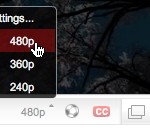 So I hope you enjoy these—let me know what you think! To see everything clearly you need to view in high resolution—click on where it says 240p or 360p in the lower-right corner and choose 480p. Also, if you click on the little double-sided arrow you’ll see the video larger.
by Michael Frye | May 27, 2010 | Digital Darkroom

This photograph of Mono Lake, processed entirely in Lightroom, shows the power of modern applications that work directly with Raw images.
There are probably as many workflows as there are photographers. There’s nothing wrong with that: everyone’s different, and a good workflow for one person can seem awkward to another. But sometimes I look at people’s workflows and think the pieces have been gathered from random tips found on the internet, assembled in no particular order, and held together with duct tape and chewing gum.
Just because you’ve always done it one way doesn’t mean that’s the best way. It’s worth periodically examining your practices to see if they still serve you. I do this all the time: I question each step, and ask if there’s a better way to do it. I look at new tools and techniques and see if they could add efficiency, power, or flexibility. I’m constantly refining and improving my workflow, and in the long run this saves me hours of valuable time.
What is a workflow?
Simply put, it’s all the steps you take to process images, including downloading, editing, keywording, developing, and output (printing or uploading images to the web). While you don’t always have to perform each task in the same order every time, it’s helpful to develop a routine so you don’t forget important steps, and don’t need to invent new procedures for each photograph. In this post I’m going to concentrate on the developing part—the operations you perform to optimize an image and make it look its best.
(more…)
by Michael Frye | May 13, 2010 | Critiques
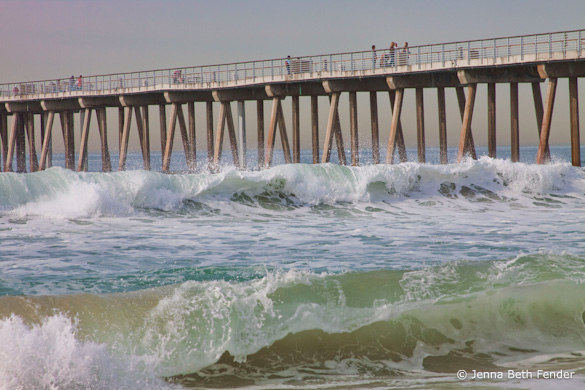
“Pacific Waves” by Jenna Beth Fender
This week’s photograph was made by Jenna Beth Fender at Manhattan Beach (or maybe Hermosa Beach) in southern California. By having her image chosen for this critique Jenna will receive a free 16×20 matted print from Aspen Creek Photo. To learn how you can submit photos for this series, and possibly win a free print, see the end of this post.
We’ve looked at several images where slow shutter speeds were used to blur the motion of water, but here a fast shutter speed of 1/400 sec. effectively froze the water’s motion, preserving the curling shape of the waves and texture of the water.
Those waves, along with the pier, provide the structure and design of this image, creating three long, slightly diagonal lines running across the frame. The overall composition is clean, simple, and strong, with some interesting details added by the spray, figures, and structural posts underneath the pier.
It was the waves, with their strong lines and almost palpable texture, that originally attracted me to this image. Jenna timed this well, catching both waves as they were curling over. Of course she may have simply held down the shutter button and picked the best one later, but that’s a perfectly valid technique—it’s what I would have done!
While the composition is strong overall, one thing that bothers me slightly is the bright spot in the lower-left corner. Since it’s on the edge it pulls my eye out of the frame. I’d rather see more room along the whole bottom edge of the photo, as that would give more breathing room to the foreground wave, which is such an important part of the composition. As it is, just darkening that lower-left corner would help.
Technically, the exposure looks good overall, although some areas of white water lack detail. The fast shutter speed worked well to freeze motion, but the trade-off was that the short exposure required a medium aperture, f/8, which didn’t provide enough depth of field to keep everything in focus (in a larger view you can see that the foreground wave is slightly soft). This image was captured at 100 ISO; by pushing the ISO up to 400 ISO Jenna could have used the same shutter speed, 1/400 sec., with an f-stop of f/16, getting both the motion-freezing short exposure time along with a small aperture to keep everything in focus. The tradeoff would have been more noise from the higher ISO, but I think the increased sharpness would have been worth the small increase in noise. Also, it would have helped to focus closer to the foreground rather than on the background. I don’t have space here to describe proper focusing technique in detail, but I do so in two of my books, The Photographer’s Guide to Yosemite and Digital Landscape Photography.
There are some hints of magenta/purple along the left edge of the image that seem unnatural and out of place. Jenna told me that she didn’t use any filters or do anything else to the photograph except use the Topaz Adjust filter with the “Photo Pop” option. I haven’t used that software, but I suspect that “Photo Pop” was the culprit in creating those strange colors. In general I’m not a big fan of automated options like this, whether from software plugins, commercially available Lightroom presets, or whatever. Every image is different, and it’s hard to create a standard set of development adjustments that will work on more than a few photographs. While pre-made settings can serve as a starting point, each image must be evaluated and adjusted based on its own unique characteristics.
With that in mind, I took this image into Lightroom and removed some magenta and purple saturation to get rid of the unusual colors. Then I added a lightening S-curve to brighten the photograph and increase the contrast, and also darkened that lower-left corner. While the improvements weren’t dramatic, every bit helps. Here’s the result:
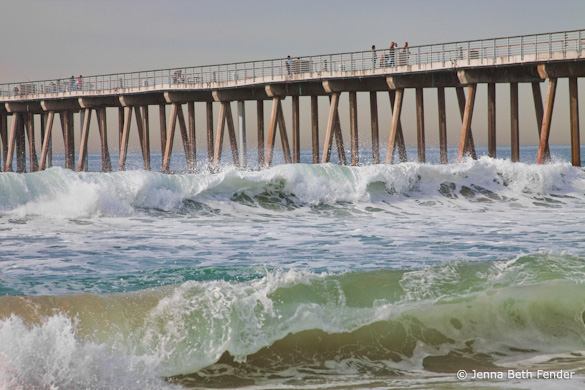
With the magenta cast removed, the lower-left corner darkened, and a bit more contrast added
The great thing about digital technology is that it’s given photographers tremendous control over the appearance of their images. The bad thing about digital technology is that it’s given photographers tremendous control over the appearance of their images. The tools can be used for good or evil—to enhance the expression and meaning of an image, or to ruin an otherwise perfectly good photograph. For better or worse, learning the software tools—and, more importantly, learning the judgement to use them wisely—has become an essential part of photography today.
Having said all that, the slight magenta/purple cast in this image is a minor problem, easily fixed, and overall I like this photograph very much—it has a clean, strong, graphic composition, great texture, and captures the feeling of a southern California beach quite well.
Thanks Jenna for sharing your image! You can see more of her work on Flickr.
As part of being chosen for this week’s critique Jenna will receive a free 16×20 matted print courtesy of the folks at Aspen Creek Photo. If you’d like your images considered for future critiques, just upload them to the Flickr group I created for this purpose. If you’re not a Flickr member yet, joining is free and easy. You’ll have to read and accept the rules for the group before adding images, and please, no more than five photos per person per week. I’ll be posting the next critique on May 18th or 19th. Thanks for participating!
by Michael Frye | Apr 21, 2010 | Critiques
“Rock Creek—Beautiful Stream” by Steve Williams
I’m pleased to announce that, beginning this week, each person who’s image is selected for a critique will receive a free 16×20 matted print courtesy of the folks at Aspen Creek Photo. Aspen Creek was created by Rich and Susan Seiling, the founders of West Coast Imaging. I’ve used West Coast Imaging for all my drum scans, and know they set high standards and produce great results. Aspen Creek Photo offers excellent prints, similar in many ways to the high-end work produced at West Coast Imaging, at very affordable prices.
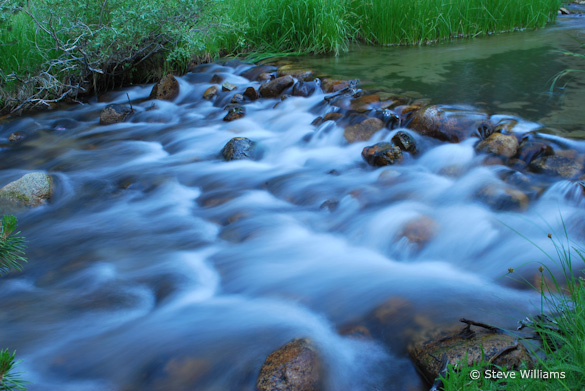
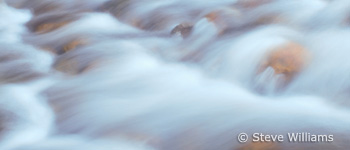
Now, on to the critique… This week’s photograph was made by Steve Williams along Rock Creek, on the eastern slope of my home mountain range, the Sierra Nevada. The small cascade is an intriguing subject, and the slow shutter speed (1/2 second) that Steve chose works well, giving the water that silky, flowing look, and creating a contrast in textures betweensmooth, ethereal water and solid rocks and grasses. There’s a nice, quiet, intimate feeling to the image; it seems like a peaceful place that I would enjoy spending time at.
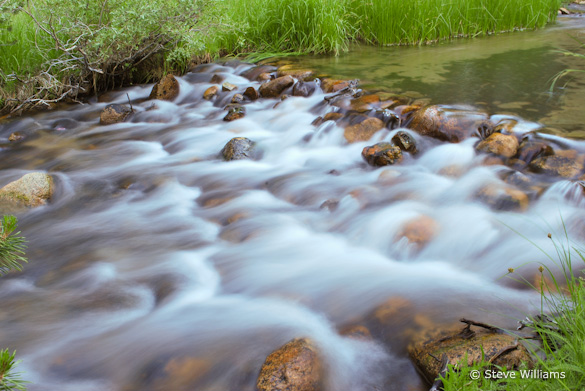
A small aperture, f/20, kept everything in focus. At first glance the exposure seemed a bit dark to me, and the white balance looked too blue—the white water, or what should be white water, has a distinct blue cast. Using the eyedropper tool in Lightroom, I clicked on the white water, and that made an immediate improvement. The photograph seems warmer, the colors livelier, and the scene more inviting. This color temperature change also boosted the red and green channels, making the image appear brighter as well as warmer. The exposure now looks perfect.
After the white balance was adjusted with the eyedropper in Lightroom
How you handle white balance (or color temperature, or color balance) depends, to a great degree, on whether you’re shooting Raw or JPEG. With Raw the white balance isn’t set in the camera, so it’s easy to adjust later in software. I always shoot in Raw, and usually just leave the camera set to automatic white balance, because it’s a simple matter to make corrections later in Lightroom with the eyedropper or color temperature slider. If the color balance might be tricky, as when photographing flowers or fall foliage at dusk, I include a white or gray card in one of the frames, then click on that card with the Eyedropper later in Lightroom and apply that same white balance setting to the other images made in the same light.
With JPEGs the white balance is set in the camera. While you can adjust it later in software, big changes can be problematic, so it becomes more critical to get it right in the field. You’ll need to set the white balance manually more often.
When you do need to adjust the white balance of a JPEG in software, it’s much easier to do so in Lightroom or Camera Raw, using that Eyedropper tool and the Color Temperature slider, than in Photoshop proper. (To open JPEGs in Camera Raw, select the image in Bridge, then choose File > Open in Camera Raw.)
First crop, eliminating distracting elements along the bottom and left edges
Changing the white balance in this photograph made a big improvement, but the composition still seemed a bit messy. Edges are always critical, and there are a number of objects here that are half-in, half-out of the frame, including the tips of two branches on the left edge, a rock just above them, and a rock along the bottom edge. The lower-right corner also seems a bit cluttered.
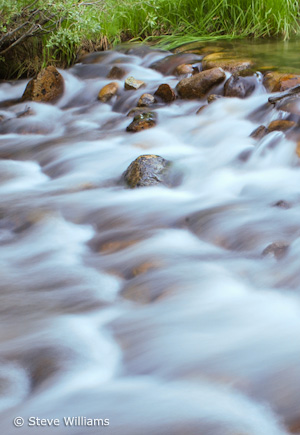
With that in mind I cropped this into a vertical, including just the cascade and the far bank. This was better, but it still seemed like there was something missing. When in doubt I ask myself what catches my eye the most. In this case the answer was easy: the flowing water. So I made several other, tighter crops, picking out interesting sections of the small rapid.
While Steve’s original composition is not exactly a wide, sweeping landscape, it does capture enough of the scene to give us some sense of place—a quiet, grass-lined creek. While I think my tighter crops are stronger designs, they lose some of that feeling and sense of place. This points to a dilemma that photographers often confront. We may prefer to capture a wider view, one that shows what an area looks like. Sometimes we can do so and make a clean, strong composition in the process, but often that wide view includes extraneous clutter. If we pick out a detail, a small piece of that scene, we can often make a strong design out of it, but then lose the context and sense of place.
So what do you do? Capture both. Take the wide view, but then keep looking, and find those interesting details.
When evaluating the images later, you’ll probably find the abstract close-ups more compelling. In photography, design always trumps subject. There’s something about interesting lines, shapes, and patterns that catches our attention and intrigues us as viewers. A photograph needs an incredibly compelling subject—like an exploding volcano, or a wolf dragging down a caribou—to overcome poor design.
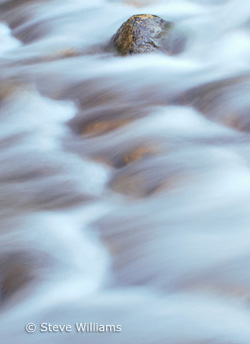
One more thing: By making these crops I’m trying to show alternate compositions, things that might have worked better than the original image, and trying to give you ideas for finding better compositions in the field. But I don’t mean to suggest that it’s okay to be sloppy, to capture a wide view with the intention of cropping later. Removing large sections of an image throws away too many of those megapixels you’ve paid so much for, leaving you with a low-resolution image that can’t be enlarged. While minor trimming is fine, it’s always better to frame the scene as precisely as possible in the camera, and keep as much of that precious resolution as possible.
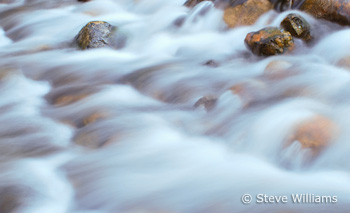
Fourth crop
Thanks Steve for sharing your image! You can see more of his work on Flickr.
As part of being chosen for this week’s critique Steve will receive a free 16×20 matted print courtesy of the folks at Aspen Creek Photo. If you’d like your images considered for future critiques, just upload them to the Flickr group I created for this purpose. If you’re not a Flickr member yet, joining is free and easy. You’ll have to read and accept the rules for the group before adding images, and please, no more than five photos per person per week. I’ll be posting the next critique on April 27th or 28th. Thanks for participating!