In the Moment:
Michael Frye's Landscape Photography Blog

Light Against Dark, Dark Against Light
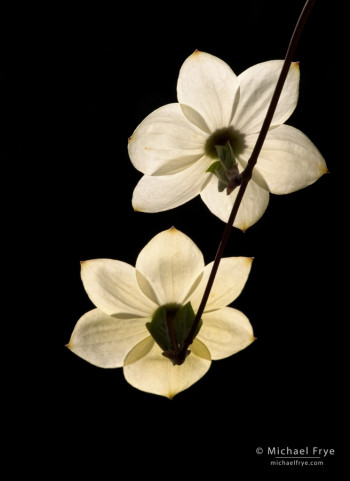
Dogwood blossoms, Yosemite. These backlit flowers stand out cleanly against a dark, shaded background.

Dogwood blossoms, Yosemite. These backlit flowers stand out cleanly against a dark, shaded background.


Light Against Dark

Many of the most effective photographs share a simple lighting concept: they either place a light subject against a dark background, or a dark subject against a light background.

This first photograph of two dogwood blossoms is a perfect example of a light subject against a dark background. In fact the background isn’t just dark; it’s completely black, so there’s nothing to compete visually with the flowers. The contrast creates a simple and dramatic image.

This light-against-dark situation is what makes photographs of Horsetail Fall so striking when conditions are right. The waterfall stands out because it’s brighter than the surrounding cliffs – and, of course, because of the color.
(more…)

Back Up and Running

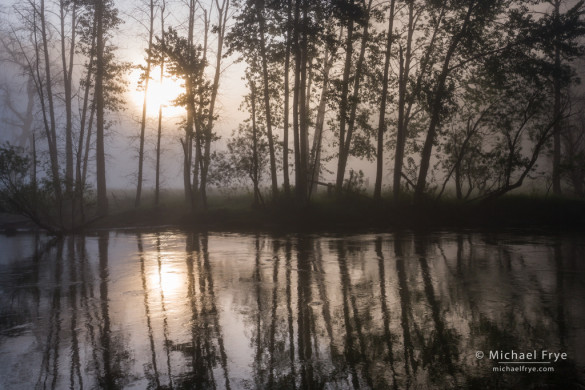
Foggy sunrise along the Merced River, Yosemite NP, CA, USA

Foggy sunrise along the Merced River, Yosemite NP, CA, USA


My web site has been back up and running consistently for a couple of hours, so it looks like everything is okay. I’m keeping my fingers crossed! You should be able to purchase and download the new ebook now, but if you experience any problems with this, or anything else, please let me know.

Again, I apologize for any inconvenience this may have caused. If all goes well I’ll be posting a free bonus video about Lightroom on Sunday, so keep an eye out for that.

— Michael Frye

We're Experiencing Technical Difficulties

My web site was down for several hours this morning, and over the last hour or so has been up and down several times. I’m sorry for any inconvenience this may be causing. If you’ve tried to purchase my new Landscapes in Lightroom 5 ebook and encountered a problem, please try again.

There is apparently a server problem at my web hosting company, Hostgator. This issue has affected customers of several web hosting companies, including Bluehost, HostGator, HostMonster and JustHost, which are all owned by the same parent company. We’re told that there may be intermittent issues for a while, so if you experience further problems please try again later. Unfortunately our email is affected too, so if you’ve had trouble contacting us, please try again.

Again, I apologize for the inconvenience!

— Michael Frye

My New eBook is Now Available!

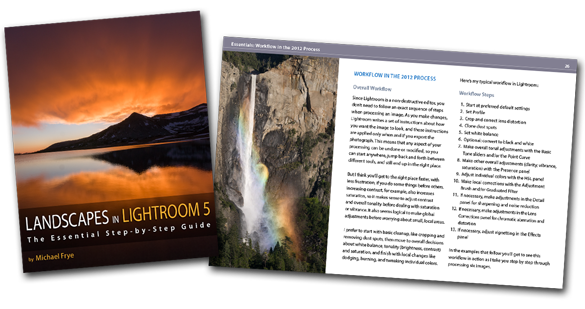
LR5-CoverSpread

Landscapes in Lightroom 5: The Essential Step-by-Step Guide

PDF ebook with video tutorials
87 double-page spreads
14.95

Add to Cart View Cart

Special introductory offer: for a limited time get 20% off by using the code LR520 at checkout. Offer expires at midnight Pacific time on August 4th.


Here it is! My latest ebook, Landscapes in Lightroom 5: The Essential Step-by-Step Guide, is now available.

I’m really excited about this new ebook, because I’ve been able to incorporate features that make this more of a hands-on learning experience. First, you can download the original Raw files used as examples in the ebook, and then follow along with each step yourself – just as if you were attending one of my workshops.

Second, when you purchase the ebook you get exclusive access to eight videos demonstrating different aspects of Lightroom’s Develop Module, like using the Adjustment Brush, Spot Removal Tool, and Point Curve, advanced retouching in Lightroom, and much more. It’s great to read about a tool or technique; it’s even better to watch a demonstration, and then try it yourself on the same image.

(more…)

Syncing the PDF to Your iPad

Syncing the PDF to your iPad

Here’s how to sync the PDF from your computer to iPad using iTunes:

1. Open iTunes, then go to File > Add to Library:

iPad1


2. Navigate to the landscapes-in-lr.pdf file (in your Downloads folder, unless you moved it), select it, and click Open:

iPad2


3. In the upper-right corner of iTunes, select your iPad (in older versions of iTunes you’ll need to select your iPad from the list on the left-hand side):

iPad3


4. Along the top row of the iTunes window, select Books:

iPad4


5. Near the upper-left, make sure Sync Books is checked. Underneath that you can choose “All Books” or “Selected Books.” If you choose Selected Books, make sure “Books and PDF files” is selected from the pull-down menu just below, and then make sure the landscapes-in-lr.pdf file is checked in the list below that:

iPad5


6. Then click on Apply down in the lower-right corner:

iPad6


7. When it’s finished syncing, open iBooks on your iPad. Tap Collections at the top, select PDFs, and you should see the Landscapes in Lightroom ebook at the top of the list (it might take a few seconds to appear):

iPad7