In the Moment:
Michael Frye's Landscape Photography Blog

Photoshop for Lightroom Users – Information

Photoshop for Lightroom Users
Information

August 8-9, 2026 (with a two-hour followup session on August 19th)

Where does the workshop take place?

Online, through Zoom. Sessions will be live and interactive, but will also be recorded so participants can view them later.

When does the workshop begin and end?

The workshop goes from 9:00 a.m. to around 4:00 p.m. Pacific Time on both Saturday and Sunday (with a half-hour break for lunch). We’ll also do a two-hour followup session about ten days later (Wednesday, August 19th) to give participants a chance to work on their own images in Photoshop and ask questions about any issues they encounter. This will be a live, interactive workshop, conducted through Zoom. Sessions will be recorded so participants can view them later.

Equipment and Materials

You’ll need up-to-date versions of Lightroom Classic and Photoshop on your computer, and the computer needs to be new enough and fast enough to run Lightroom and Photoshop at the same time without excessive delays. You’ll also need a computer or tablet with microphone and speakers for using Zoom. In order to follow along with the examples, it’s helpful to have a computer with two monitors, so you can put Zoom on one monitor and Photoshop on the other. Or you could put Zoom on a tablet, and follow along in Photoshop on your computer, or put Zoom on a laptop, and follow along in Photoshop on your desktop. You’ll also want to have some of your own images to practice with; we’ll send you more information about that when you register for the workshop.

Experience

You don’t need any previous Photoshop for experience for this class, but you do need to have a solid working knowledge of Lightroom Classic and its capabilities, as we won’t be covering Lightroom. The workshop is designed for Lightroom Classic users with beginner or intermediate Photoshop skills.

Cancellation

Refunds are not available less than 30 days prior to the workshop unless we can fill the vacancy, in which case you’ll be charged a $50 cancellation fee. If you do need to cancel we ask that you let us know as soon as possible so we can alert people on the waiting list.

In the rare event that we need to cancel this workshop because of lack of enrollment or an unforeseen event you will receive a credit toward a future workshop.
 

This workshop is full!
Please email us to sign up for the waiting list.


2026 Workshops and Events

Antarctica (through Visionary Wild, with co-leader Justin Black)
January 1-17, 2026
(Completed)

Out of Merritt Island Photo Conference
March 8-12, 2026
(Completed)

Grand Canyon by Raft (through Visionary Wild, with co-leader Jerry Dodrill)
April 26 - May 9, 2026
(Waiting List)

The Mystic Forest: Redwoods Along the Northern California Coast
June 1-5, 2026
(Waiting List)

Starry Skies Adventure: Yosemite and the Eastern Sierra
June 15-18, 2026
(Waiting List)

The Range of Light: Yosemite and the High Sierra
July 13-17, 2026
(Waiting List)

Out of Grand Teton Photo Conference
September 27 - October 1, 2026

Exploring the Oregon Coast
November 5-9, 2026
(Waiting List)

Yosemite: Winter Light
December 7-11, 2026
(Waiting List)
Photoshop for Lightroom Users: An Online Workshop

Photoshop for Lightroom Users:
An Online Workshop

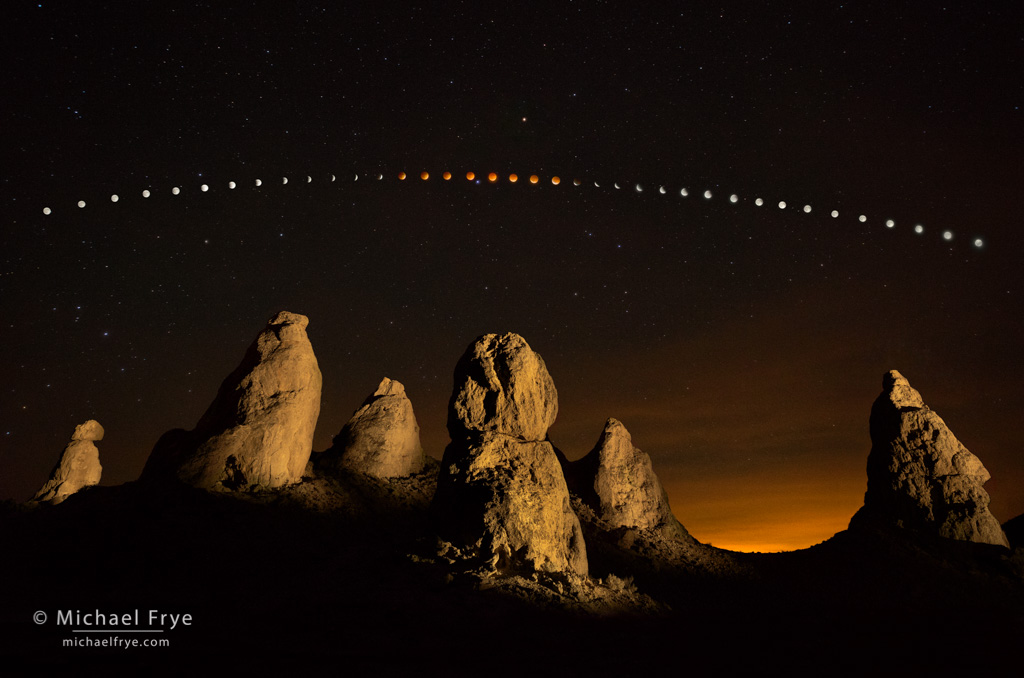
Lunar eclipse sequence, April 14th and 15th, 2014, Trona Pinnacles, CA, USA
• August 8-9, 2026 (with a two-hour followup session August 19th)
• Online Workshop
• Focus: Digital Darkroom
• Level: Advanced Beginner, Intermediate, and Advanced
• Maximum 12 Participants
• Tuition: $425
Workshop FAQ

This workshop is full!
Please email us to sign up for the waiting list.


Many Lightroom users are intimidated by Photoshop. They feel they “should” use Photoshop, yet find its complexity daunting. But it doesn’t have to be that way. Photoshop isn’t that difficult to learn – with the right guidance to help you concentrate on the tools and techniques most helpful to photographers.

This workshop is designed to help you learn those essential tools so you can take advantage of Photoshop’s power, yet not get lost in Photoshop’s complexities. You’ll learn how to create a solid, flexible, non-destructive workflow in order to avoid problems, and allow you to make future revisions to your images without starting over. You’ll learn how to use the most important tools for photographers – not all the stuff meant for graphic designers. Here’s a partial list of the topics we’ll cover:

• Setting up Photoshop
• Workflow from Lightroom to Photoshop and back
• Using Adjustment Layers, Smart Objects, and Smart Filters to create a flexible, non-destructive workflow
• Basic image processing in Photoshop
• Dodging and burning in Photoshop
• Understanding layer masks
• Using luminosity masks
• Manual exposure blending
• Blending focus stacks
• Shutter speed blends
• Blending Nighttime Photos for Noise Reduction
• Retouching in Photoshop
• Stretching, warping, and perspective corrections
• Expanding the canvas
• Basic Compositing
• Using plugins from Photoshop
• Print sharpening and preparation

I think most people learn best by doing, so I’ll give participants sample files they can use to follow along with me as I demonstrate the various techniques we’ll cover.

You don’t need any previous Photoshop for experience for this class, but you do need to have a solid working knowledge of Lightroom Classic, as we won’t be covering Lightroom and its capabilities. The workshop is designed for Lightroom users with beginner or intermediate Photoshop skills.

The workshop takes place over two days, Saturday and Sunday, from 9:00 a.m. to around 4:00 p.m. Pacific Time. We’ll also do a two-hour followup session about ten days later (Wednesday, August 19th) to give participants a chance to work on their own images in Photoshop and ask questions about any issues they encounter. This will be a live, interactive workshop, conducted through Zoom. Sessions will be recorded so participants can view them later.

More details about this workshop…

2026 Workshops and Events

Antarctica (through Visionary Wild, with co-leader Justin Black)
January 1-17, 2026
(Completed)

Out of Merritt Island Photo Conference
March 8-12, 2026
(Completed)

Grand Canyon by Raft (through Visionary Wild, with co-leader Jerry Dodrill)
April 26 - May 9, 2026
(Waiting List)

The Mystic Forest: Redwoods Along the Northern California Coast
June 1-5, 2026
(Waiting List)

Starry Skies Adventure: Yosemite and the Eastern Sierra
June 15-18, 2026
(Waiting List)

The Range of Light: Yosemite and the High Sierra
July 13-17, 2026
(Waiting List)

Out of Grand Teton Photo Conference
September 27 - October 1, 2026

Exploring the Oregon Coast
November 5-9, 2026
(Waiting List)

Yosemite: Winter Light
December 7-11, 2026
(Waiting List)
Two Simple Tips for Removing Dust Spots in Lightroom

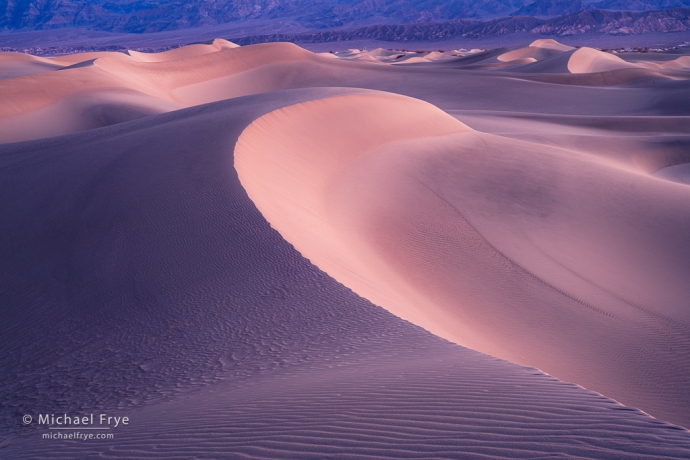
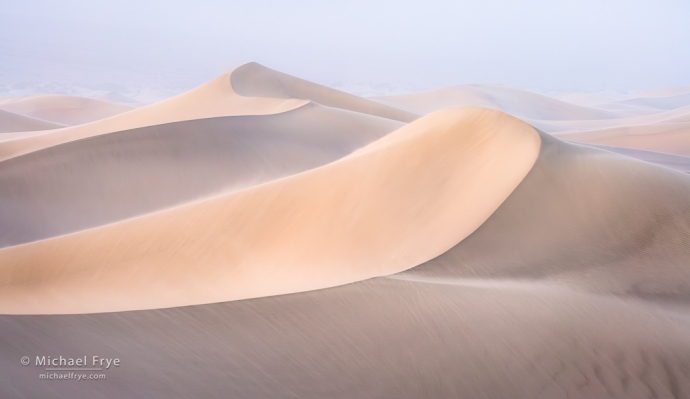
Dunes at sunrise in a sandstorm, Death Valley NP, CA, USA

Dunes at sunrise in a sandstorm, Death Valley NP, California. During a dust storm, as you might expect, my sensor accumulated plenty of dust spots (see the next image below).

Removing dust spots from an image can be a tedious chore. Do you want to do that tiresome job twice? I certainly don’t – which is why I remove dust spots in Lightroom, rather than Photoshop.

There’s no way to do retouching in Photoshop in a completely flexible, non-destructive way that adapts to any further changes you make to the underlying layers. But when you remove a spot or object in Lightroom (or Camera Raw), the retouching will always adapt, no matter what you do to the image in the future. Even if you make a drastic change, like lightening the photo by two stops, making a big adjustment to the white balance, or converting it to black and white, the retouching in Lightroom will adapt and blend in seamlessly. And that means you’ll never, ever, have to do it again – which, for me, is a big advantage.

(more…)

Lightroom Webinar: Advanced Retouching


Make Your Workflow Faster and More Efficient By Mastering Lightroom’s Powerful Retouching Tools

Retouching can be a tedious chore. Even removing simple dust spots can be time-consuming, and more complex tasks take even longer. So the last thing you want is to do it over again! But unfortunately that’s always a possibility when you do retouching in Photoshop, even if you do it on a separate layer. What if you need to go back and modify the original raw file settings in Lightroom? Or what if Adobe adds a new feature for Lightroom (like a fantastic new Denoise tool) that you want to take advantage of? Now your cloning layer won’t match the new raw-file settings, and you’ll have to do the retouching over again.

But if you do the retouching in Lightroom you’ll NEVER have to do it again, because the retouching will always adapt seamlessly to any changes you make to the raw file – plus you can simplify your workflow by avoiding the roundtrip to Photoshop and back. This Lightroom-only workflow has become much easier in recent years as Adobe has added powerful new retouching tools to Lightroom, making it possible to do even complex jobs with relative ease. Because of Lightroom’s power and flexibility, I never do retouching in Photoshop anymore if I can possibly help it.

(more…)

Lightroom Webinar: Painting With Light

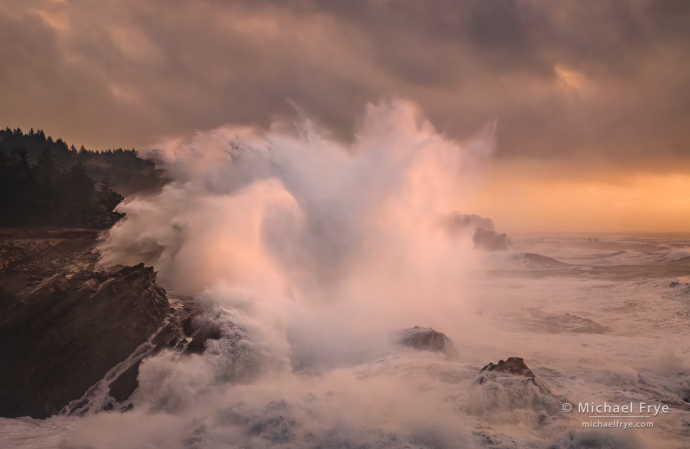
Wave splash at sunset, Oregon Coast, USA

Wave splash at sunset, Oregon Coast

Using Lightroom’s Local Adjustments to Create Powerful Visual Stories

“Dodging and burning are steps to take care of mistakes God made in establishing tonal relationships!”

— Ansel Adams

Successful photographs use light and composition to draw the viewer’s eye to the right spots – the places the photographer wants people to notice. But, as Ansel Adams points out, sometimes nature needs a little help!

When processing images, I probably spend 90% of my time on local adjustments. That includes dodging and burning (lightening and darkening), but also many other subtle and not-so-subtle changes to the luminance, color, and contrast in particular parts of the photograph.

(more…)